
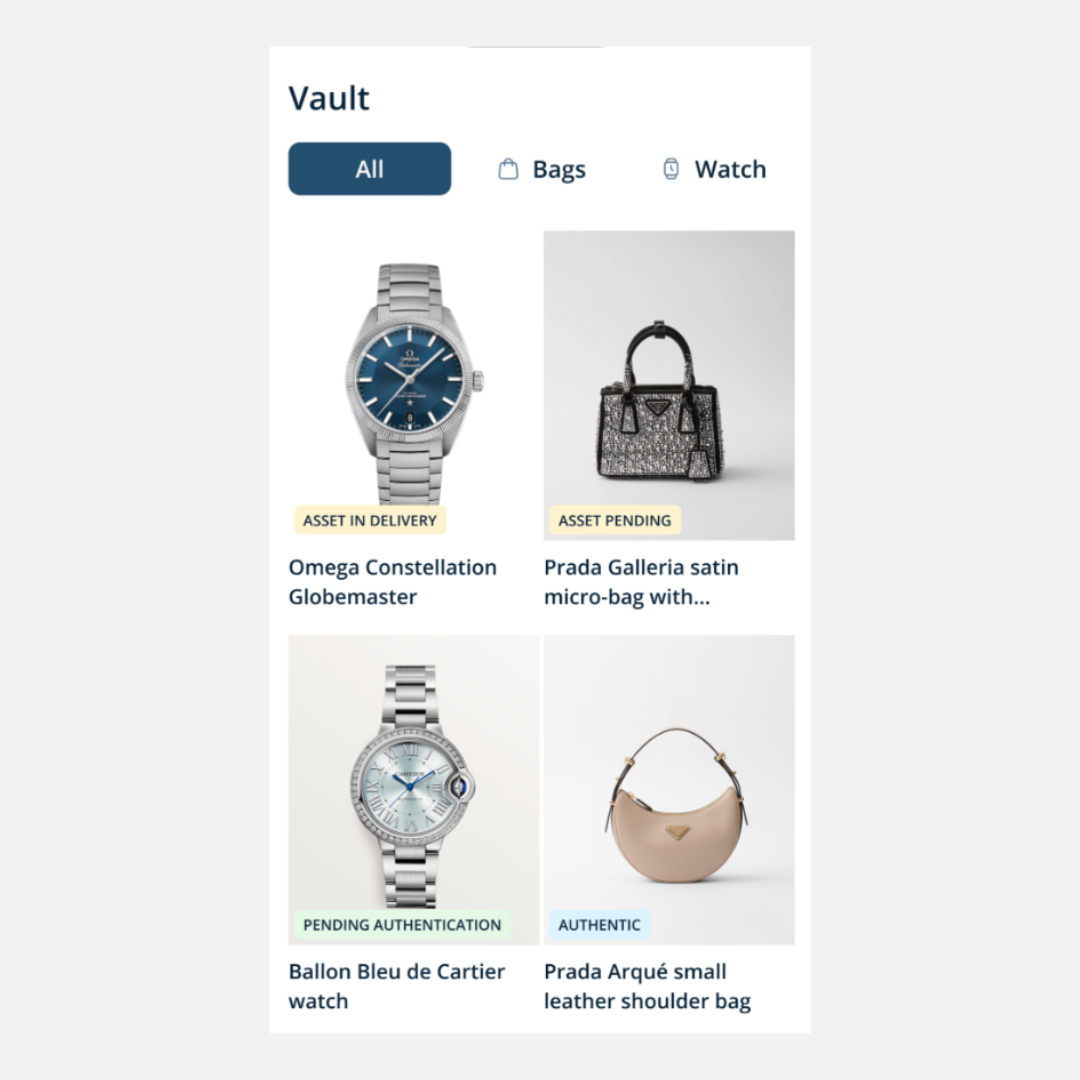
At LUXAR, verifying your luxury assets is now easier than ever with our new at-home Asset Verification feature. In just a few simple steps, you can securely submit your luxury watches and handbags through the app for expert review, giving you peace of mind.
The following instructions will walk you step-by-step through the seamless process; from creating a verification request to receiving your verification certificate, making luxury ownership effortless, transparent, and easier than ever.
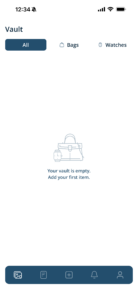
Step 1: Log In and Access Your Vault
- Open the LUXAR app and log in to your account
- From the home screen, navigate to your Vault
- In your Vault, tap the “+” (plus) icon located at the bottom of the screen to start a request to verify your asset
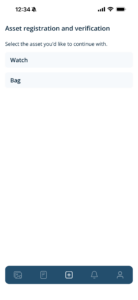
Step 2: Select Your Asset Category
- Choose whether you would like to verify a watch or a handbag
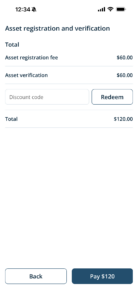
- Once selected, you will automatically be directed to the payment page
- Complete the payment using your preferred payment method for your request to be created
Step 3: View Your Verification Request in your Vault
- Return to your Vault
- You will see a newly created “Asset Verification Request”
- Tap on the request to continue
At this stage, your request has been created, but your asset details still need to be added for review.
Step 4: Add Asset Information
After clicking on your asset request, add detailed information about your asset including:
- Asset name
- Brand
- Model
- Serial number
- Supporting documents/certificates (if available)
- Description
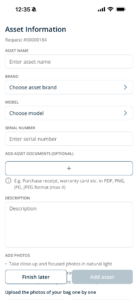
Step 5: Upload Photos
- Upload specific close-up photos as instructed in the app
Photo requirements may include:
- Front and back views
- Close-ups of logos, engravings, serial numbers, or stamps
- Clear, well-lit images with no blur or glare
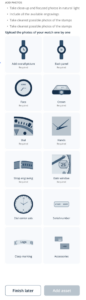
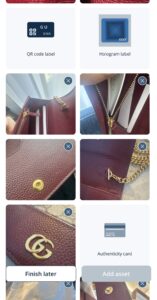
Step 6: Submit Your Asset
- Review all the information and images you’ve added
- Tap “Add Asset” to submit
Your asset is now officially submitted for review (Pending Verification).
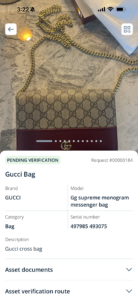
Step 7: Verification Review and Certificate
Once submitted, LUXAR’s verification experts will review your asset.
If the provided information and photos are sufficient, you will receive a verification certificate in your Vault with one of the following outcomes:
- Authentic – The asset has been verified as authentic
- Indecisive – The available information was not sufficient to confirm authenticity
Additional Information:
More Photos or Information Requests
In some cases, you may be asked to provide:
- Additional or clearer photos
- More detailed close-ups
- Extra documentation or asset details if available
If this happens, you will need to provide those photos or documents in order for the certificate to be issued with one of the decisions.
LUXAR, your assets verified.